Step-by-Step Guide
Everything you need to join the server
1
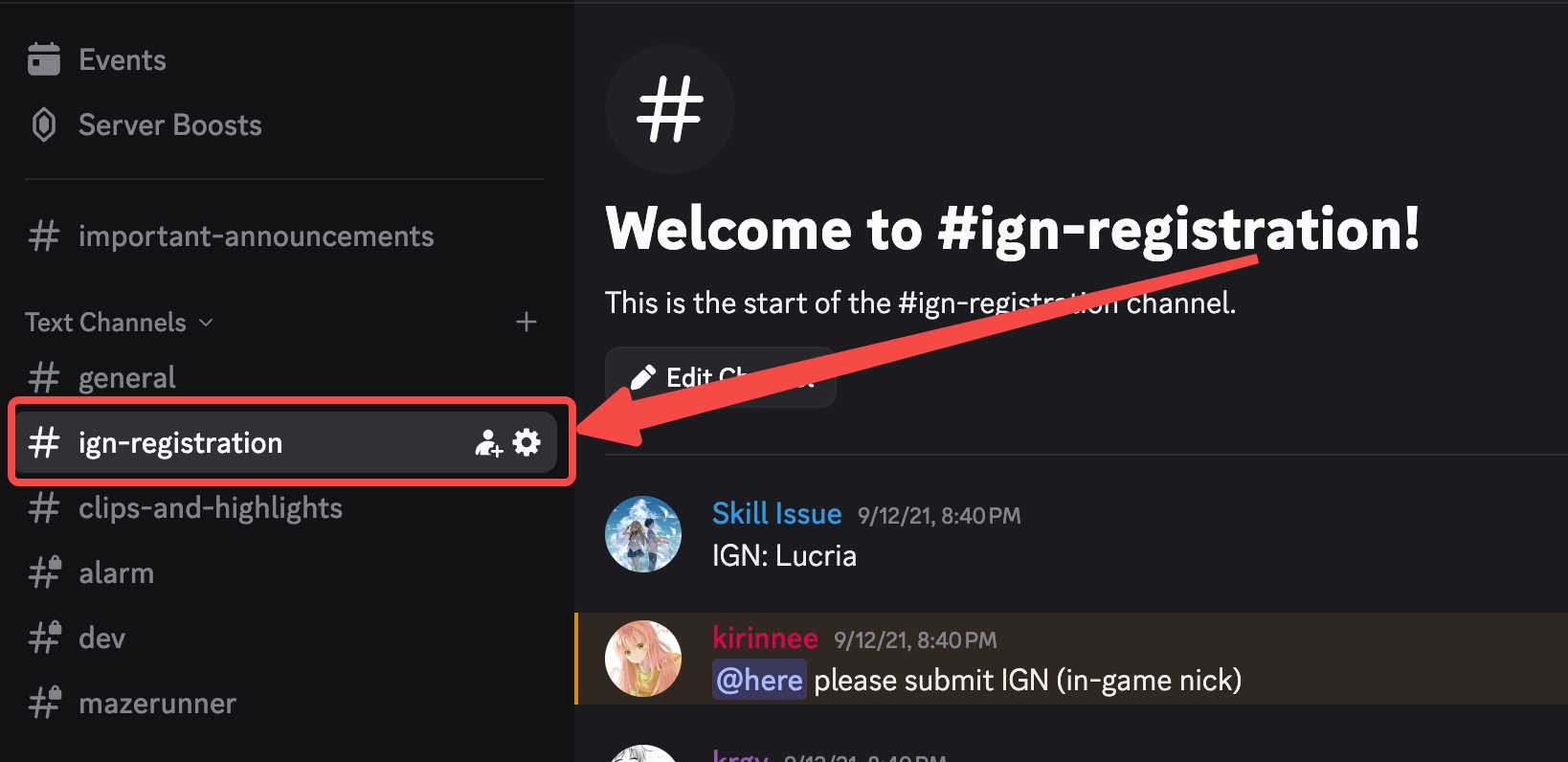
Join Discord & Register IGN
Required for whitelisting
Submit your Minecraft username in #-ign-registration
2
Install CurseForge
Modpack launcher
Windows
macOS
- Download from curseforge.com
- Run
CurseForge-Setup.exe - If "Windows protected your PC": More info → Run anyway
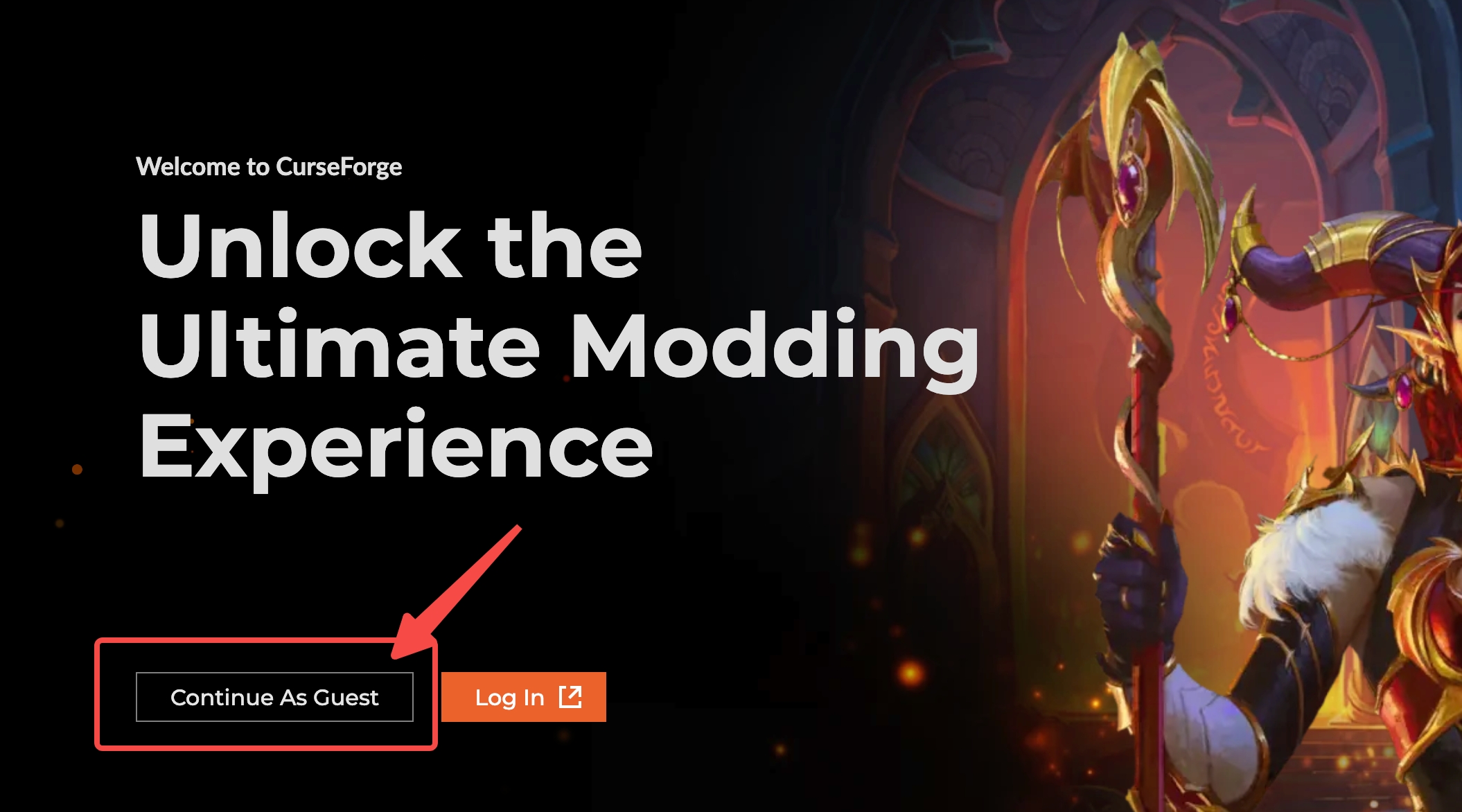
- Choose Continue as Guest (no account needed)
- Download from curseforge.com
- Open
.dmg→ Drag to Applications - If "unidentified developer": System Preferences → Privacy & Security → Open Anyway
- Choose Continue as Guest (no account needed)
3
Install Modpack
Create Chronicles: The Endventure
- Click the link below to install the modpack (opens CurseForge app)
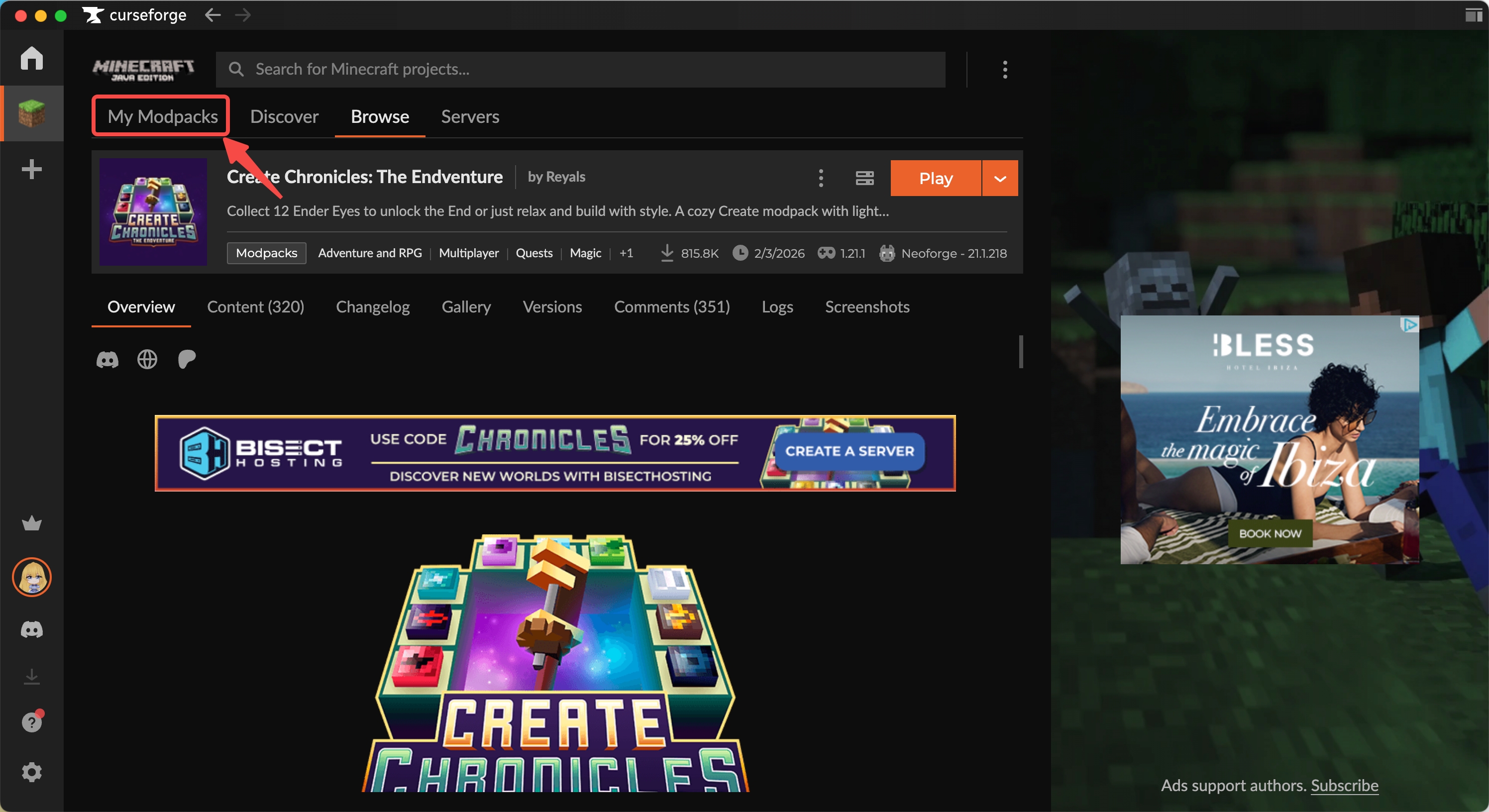
- Go to My Modpacks page in CurseForge
4
Launch Game
First launch takes a few minutes
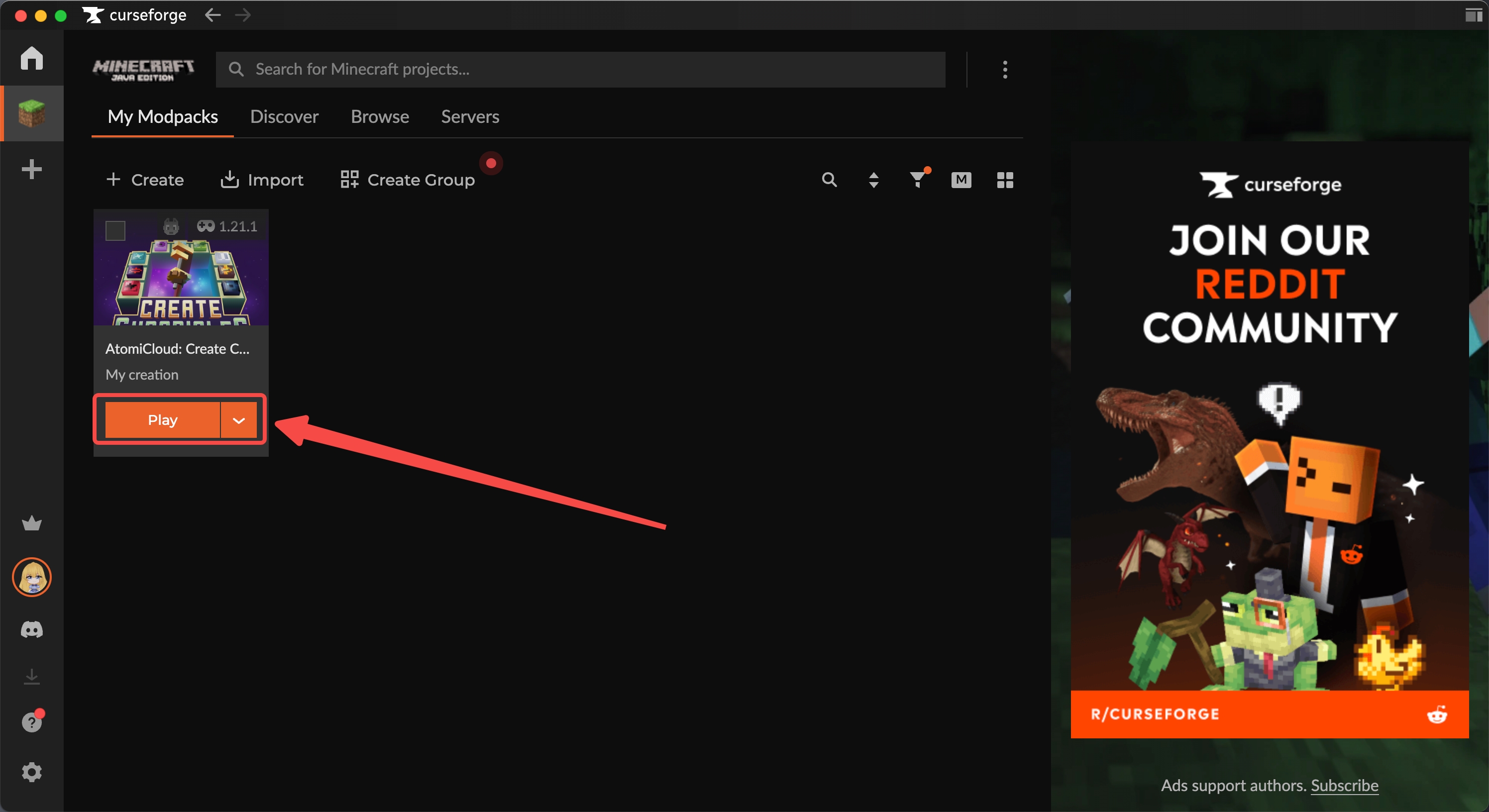
- Start the launcher from CurseForge (click Play on your modpack)
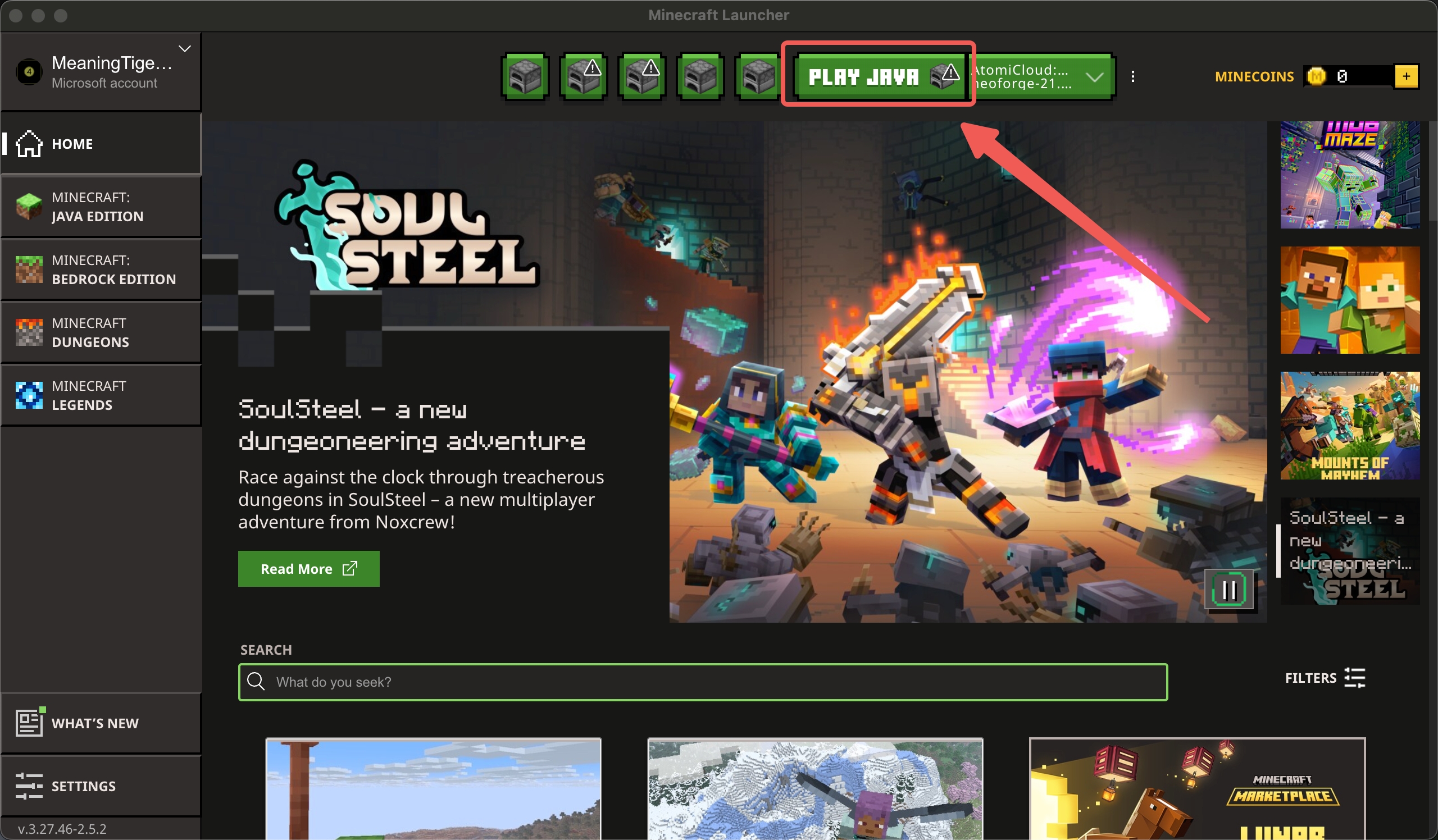
- Click Play Java from the Minecraft launcher
Note: You may need to link your Microsoft account with Java Edition first
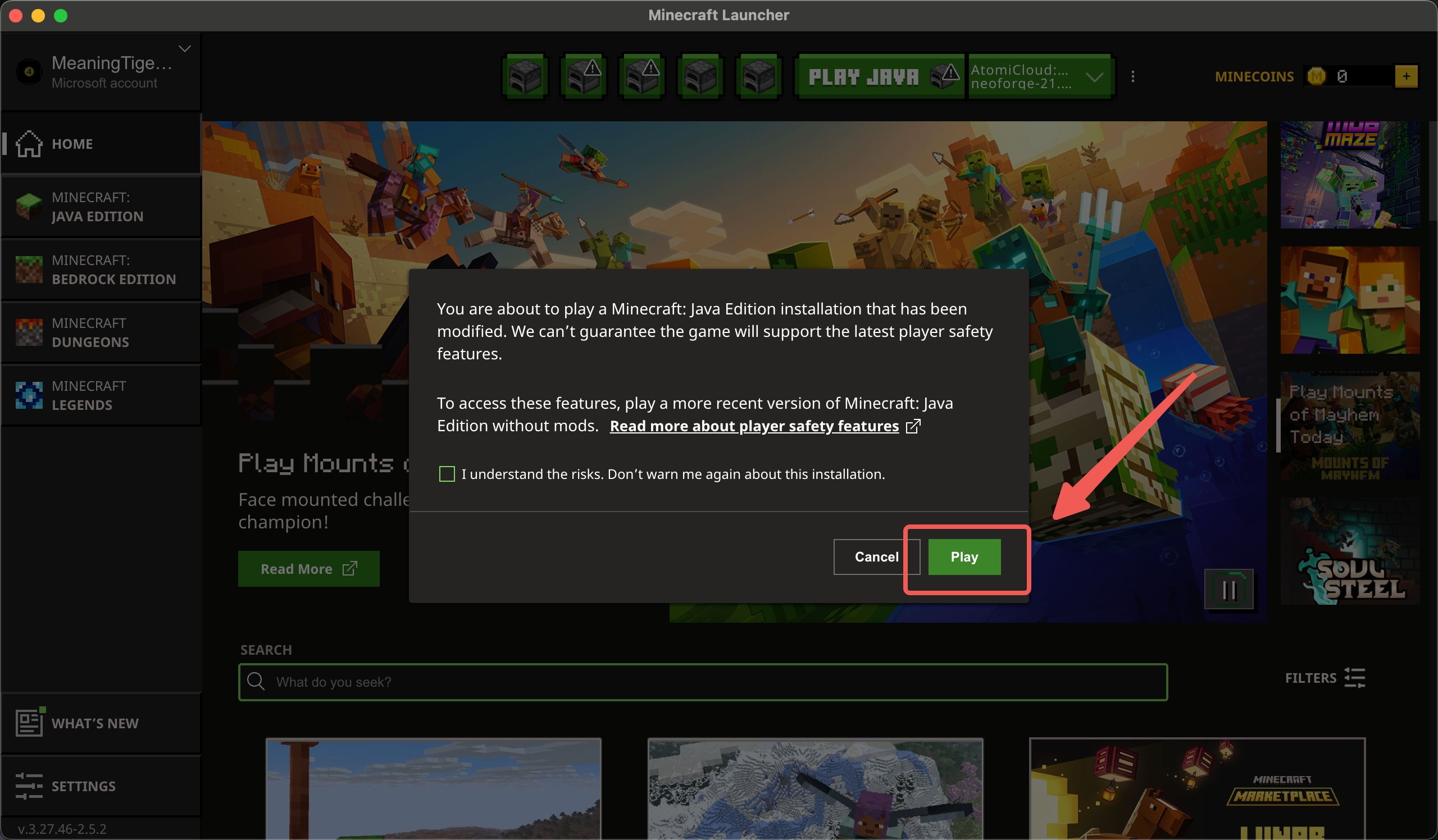
- Click Play on the modal to start the game
5
Join Server
Connect to the server
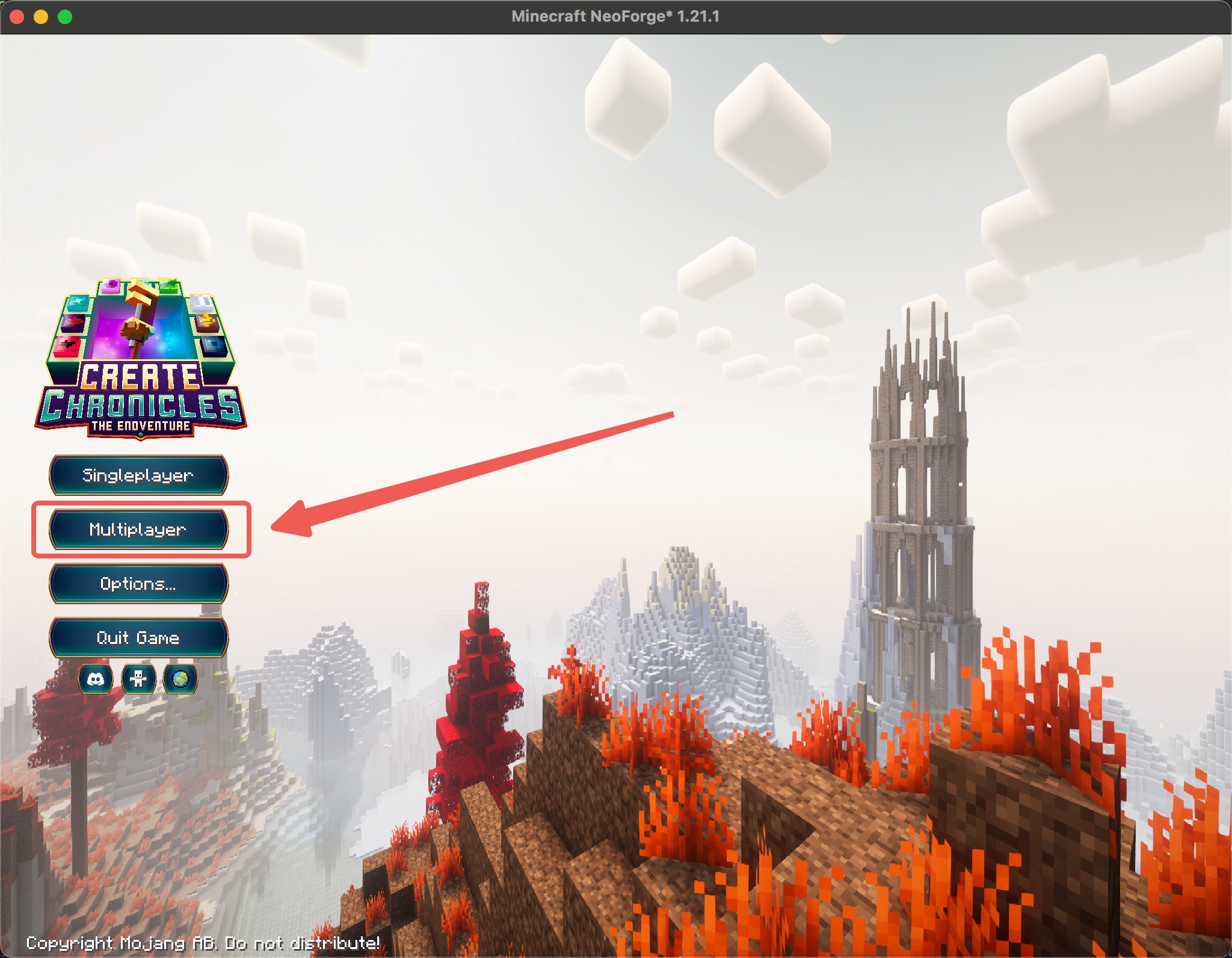
- Click Multiplayer
- Click Add Server
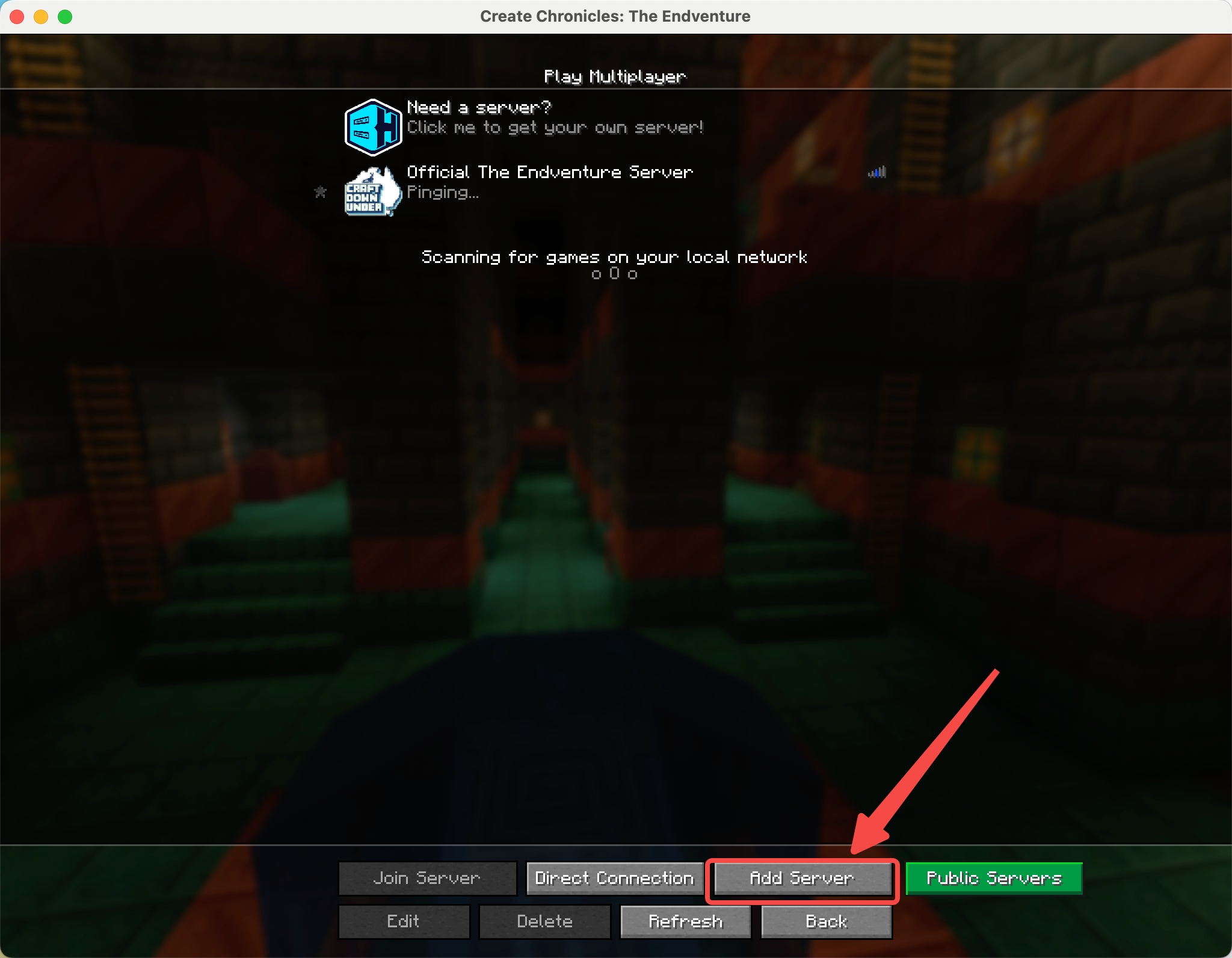
- Fill in the server details:
Server Name:
AtomiCloud: Create Chronicles Server Address:
chronicles.atomi.cloud 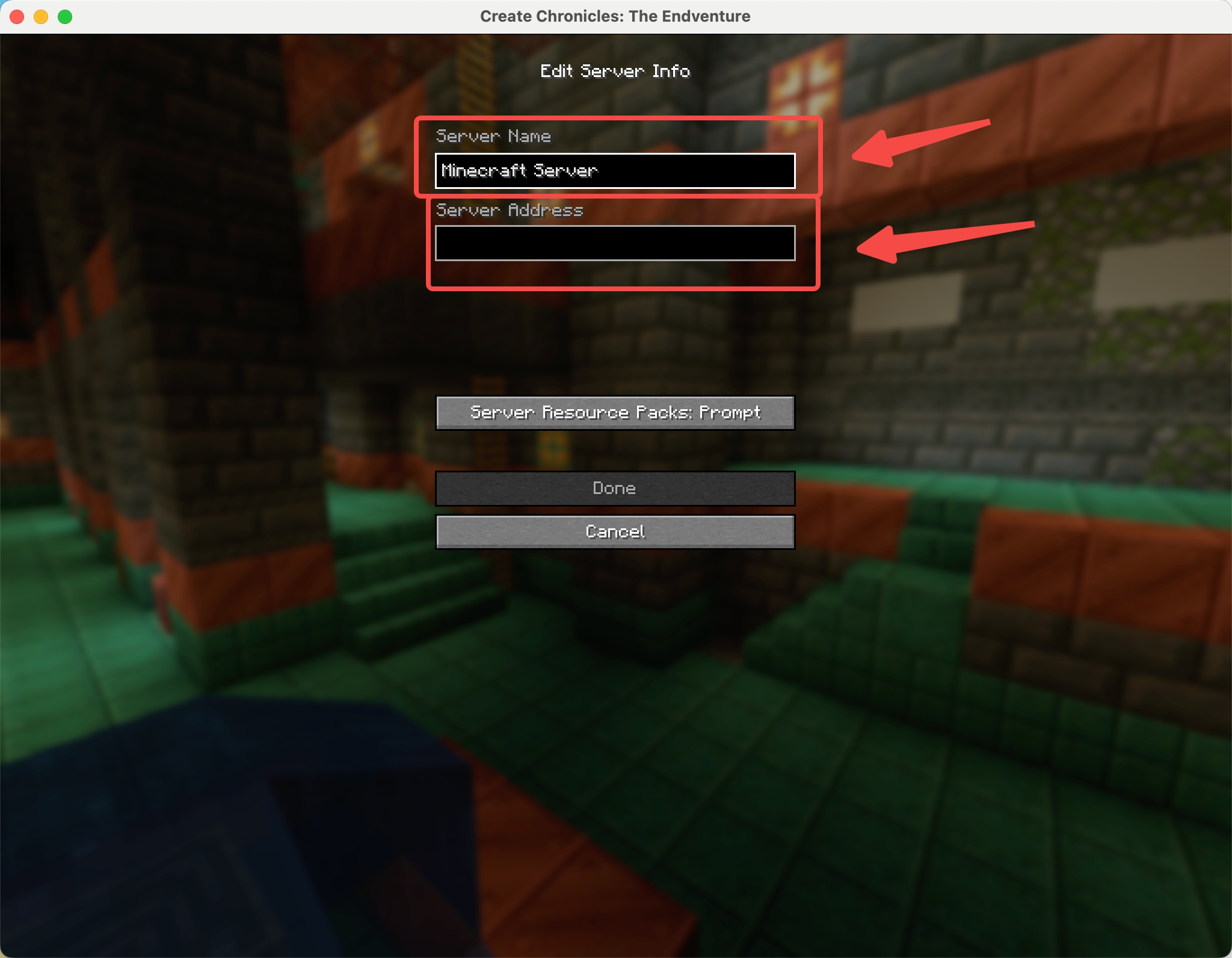
- Click Done
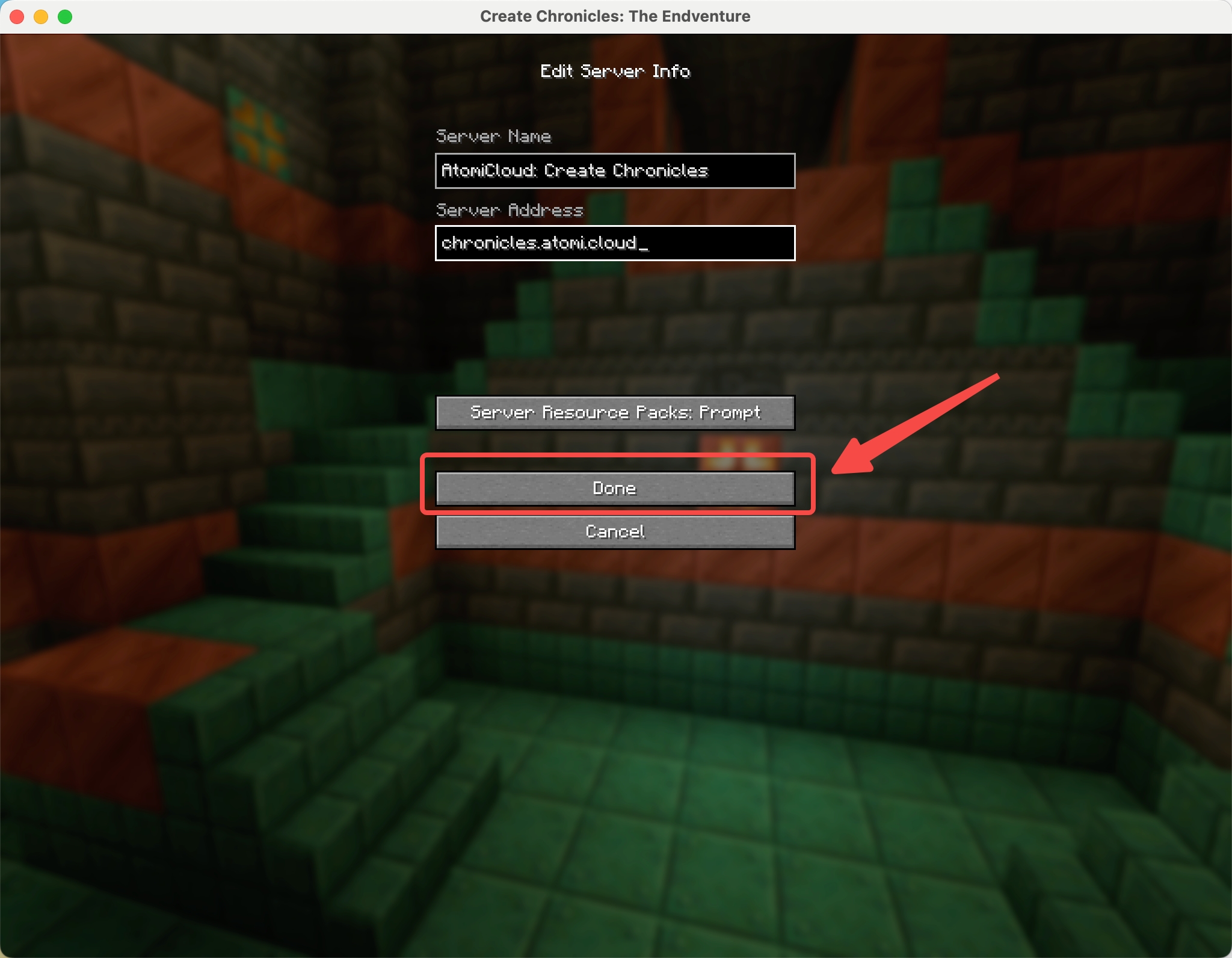
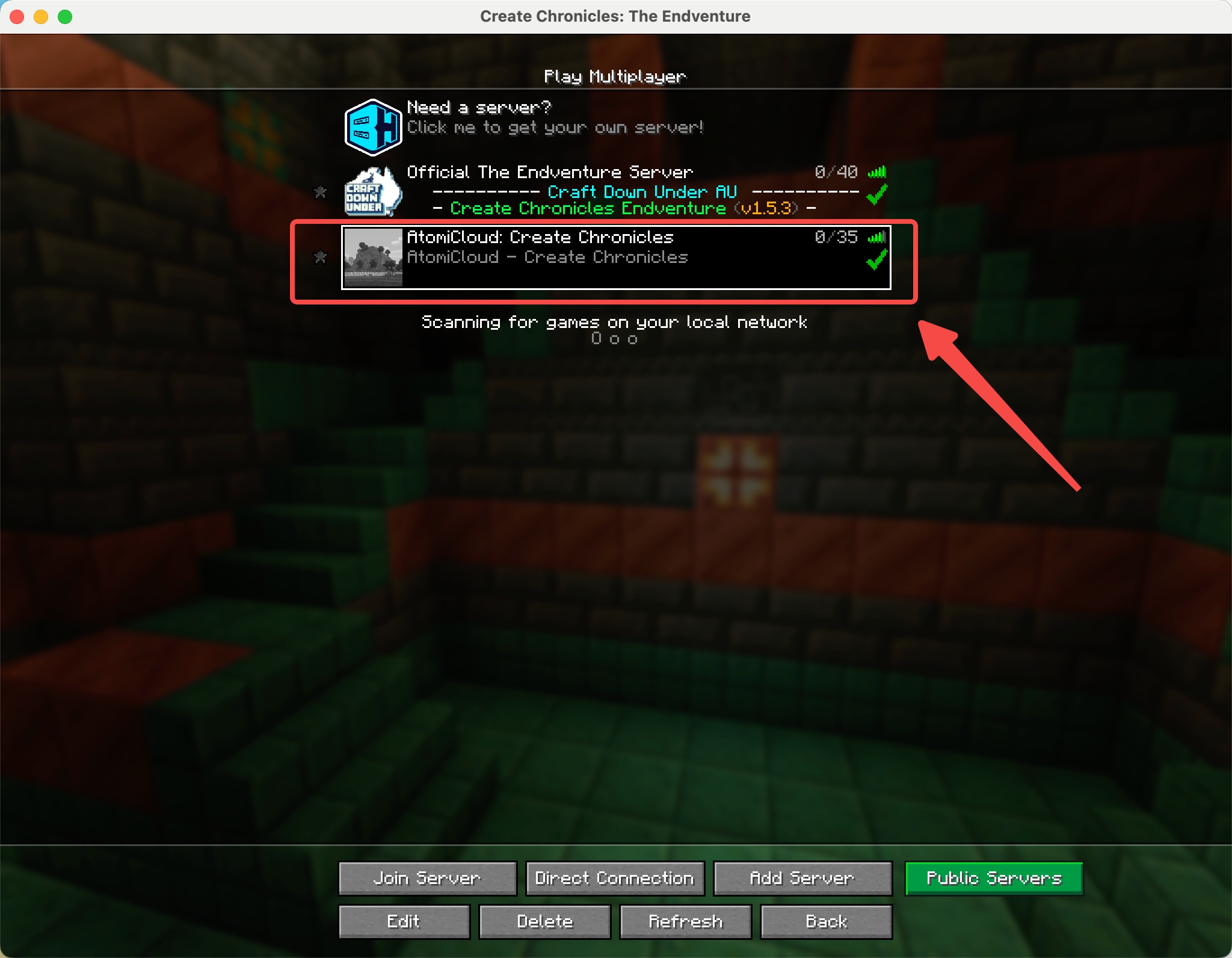
- Double-click the server to join!
Troubleshooting: Game crashes? Try again. Still broken? DM
@kirinnee on Discord.